
Axis Account Linking
Connected Banking lets you link your Axis Bank current account to Open. Once linked, you get:
- Real-time visibility of account balances
- Payment initiation directly from Open
- Automatic transaction sync and easy reconciliation
- Two-factor authentication on every authorization
- Real-time payment status updates
Supported accountsLinking is available for current accounts only, on either Retail or Corporate Axis Bank internet banking logins. Make sure your internet banking credentials are active and your registered mobile number can receive OTPs.
Before you start
| Requirement | Details |
|---|---|
| Open account | Access to the Open dashboard at app.open.money |
| Axis Bank login | Active Retail (RIB) or Corporate (CIB) internet banking credentials |
| Registered mobile | Reachable for OTP delivery |
| Account type | Current account |
Step 1 — Log in to the Open dashboard
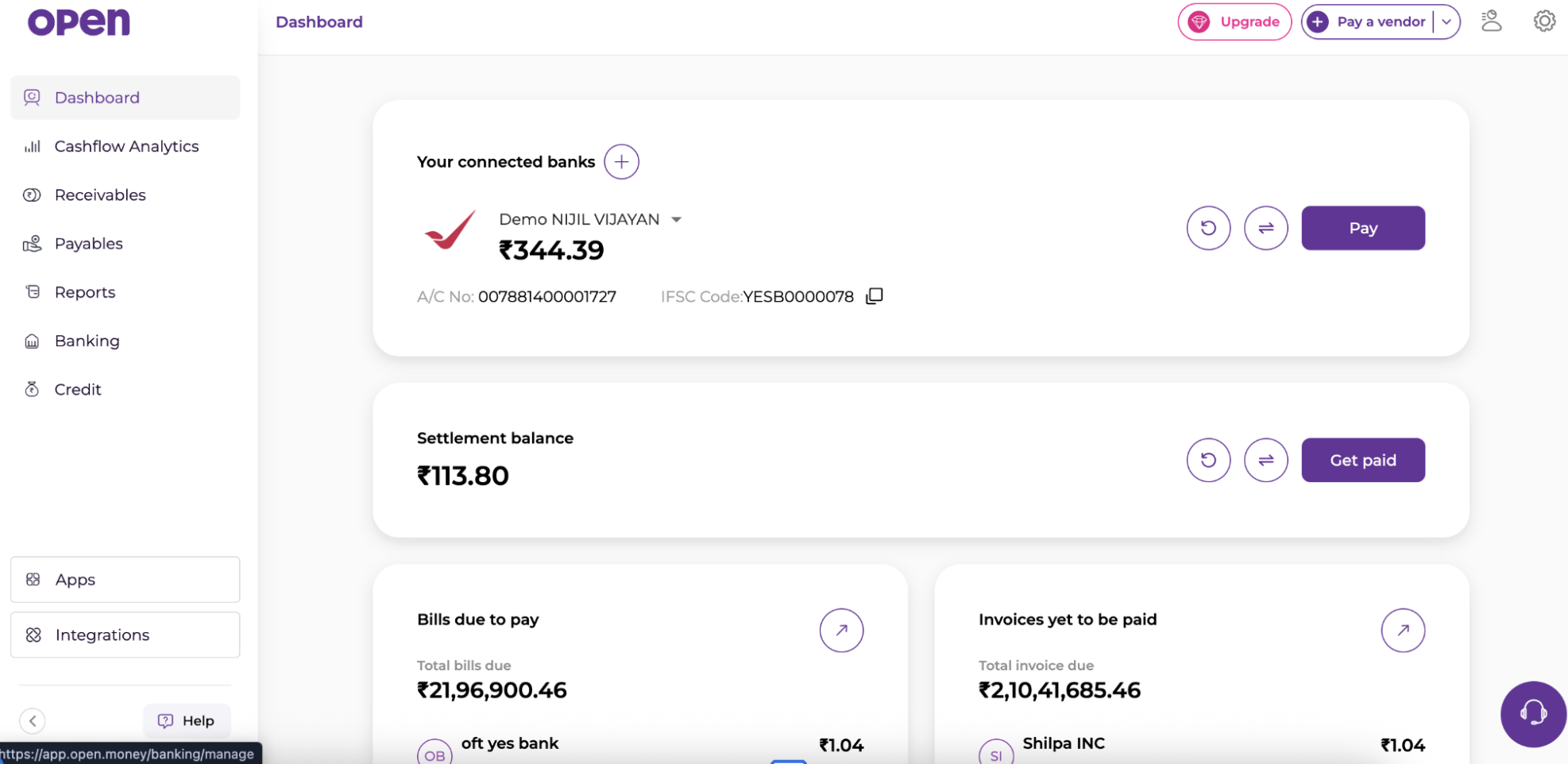
Sign in at app.open.money. Your existing connected banks and settlement balance appear on the Dashboard.
Step 2 — Go to Connected Banking
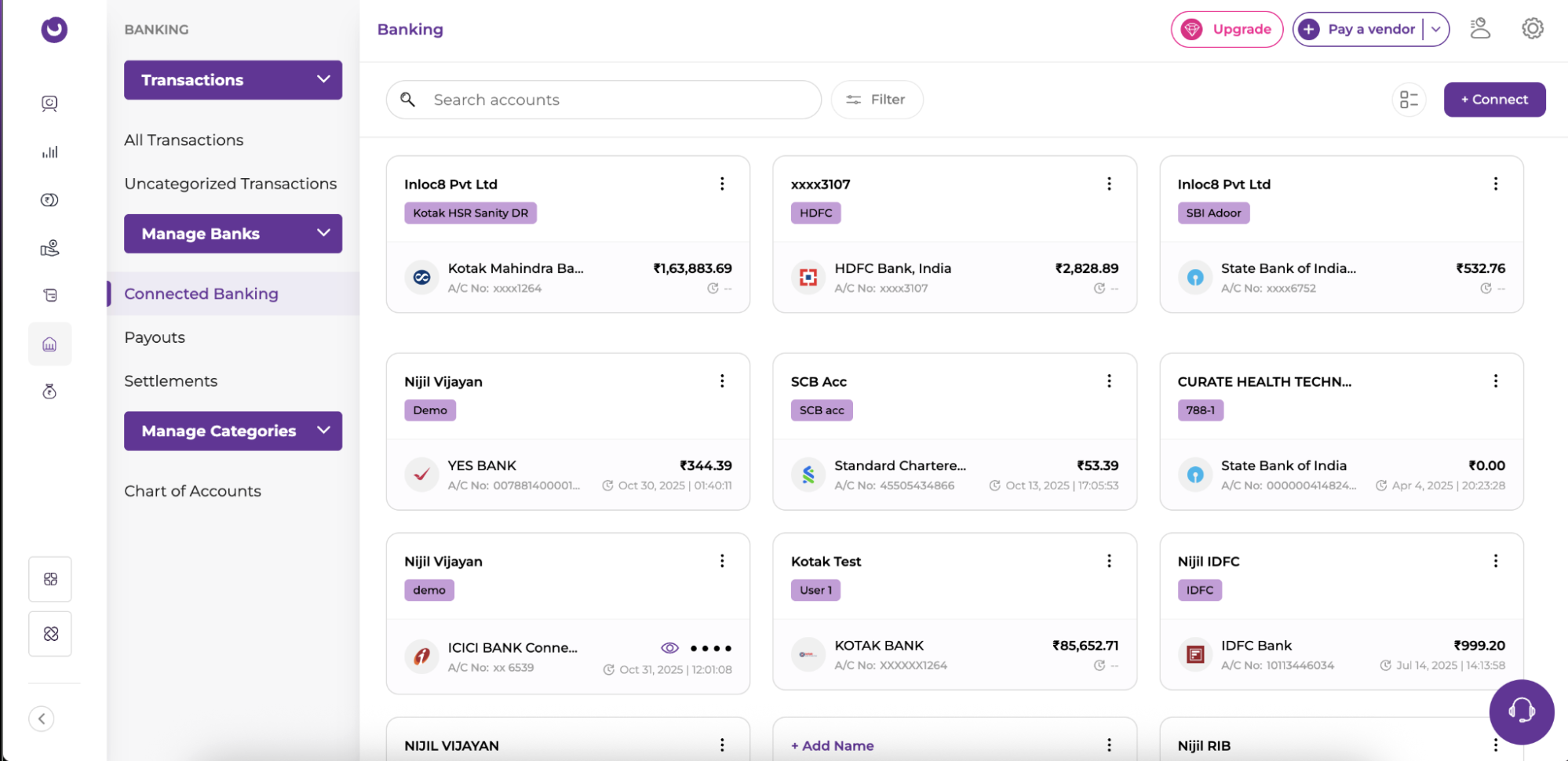
From the left navigation, open Banking → Manage Banks → Connected Banking. This page lists every account already linked to your Open workspace.
Step 3 — Click + Connect
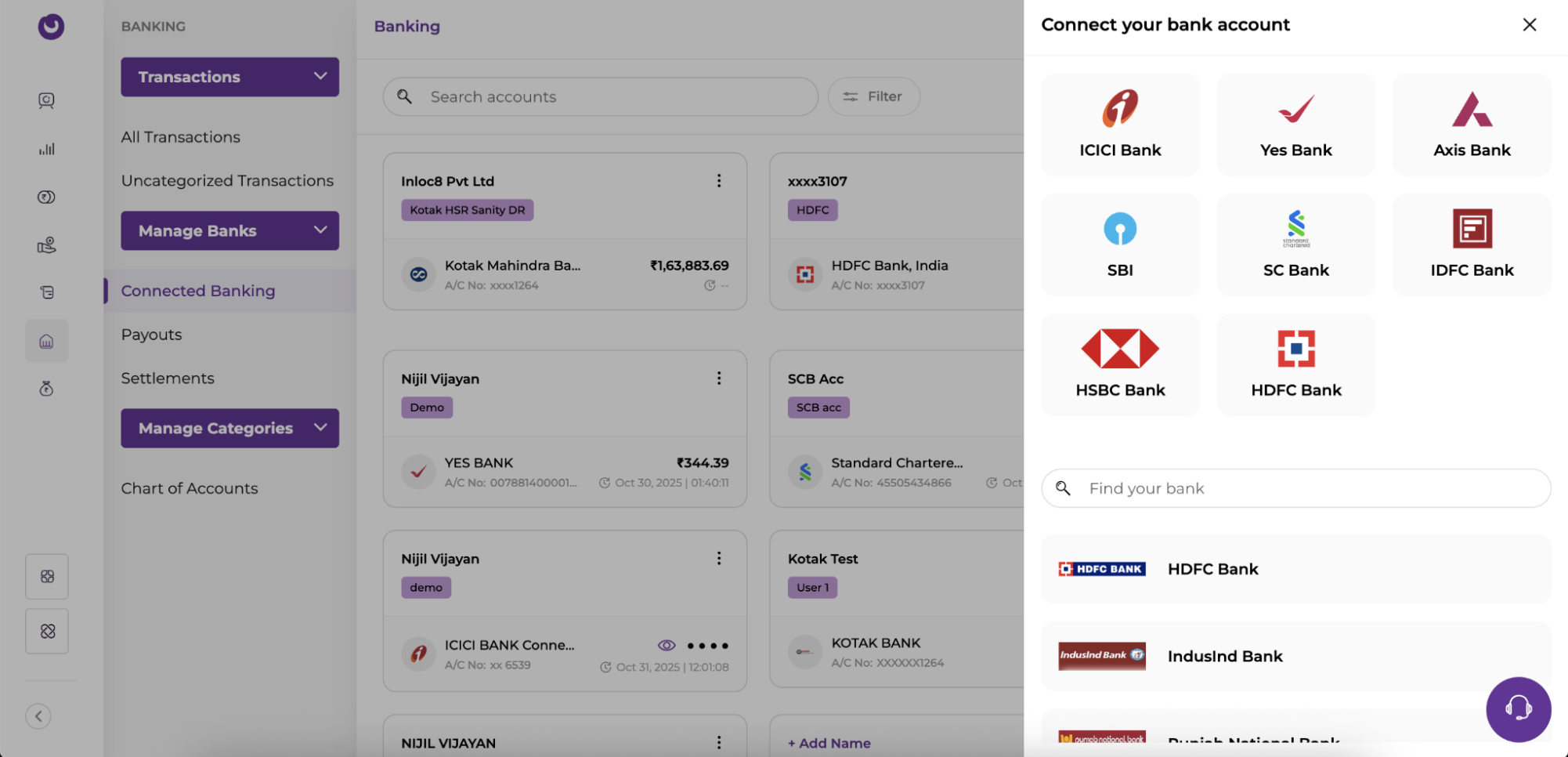
Select + Connect in the top-right corner. The Connect your bank account panel opens with the list of supported banks. Use Find your bank if your bank is not in the shortcut tiles.
Step 4 — Select Axis Bank
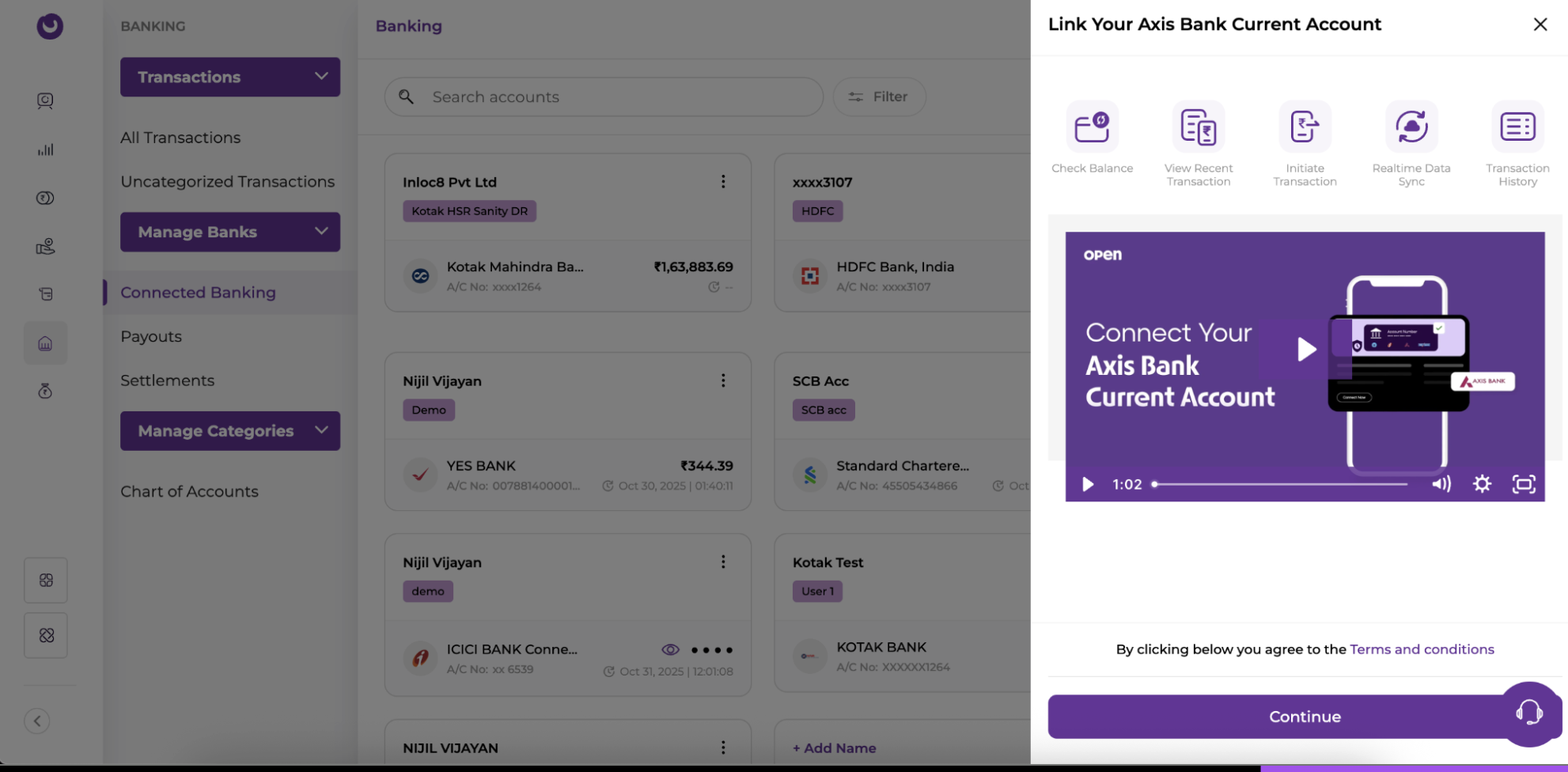
Choose the Axis Bank tile. The Link Your Axis Bank Current Account panel shows the capabilities you are enabling — Check Balance, View Recent Transaction, Initiate Transaction, Realtime Data Sync, and Transaction History — along with a short walkthrough video.
Review the linked Terms and conditions, then click Continue.
Step 5 — Authorize on the Axis Bank page
You are redirected to the Axis Bank Authorize permission page in a new tab.
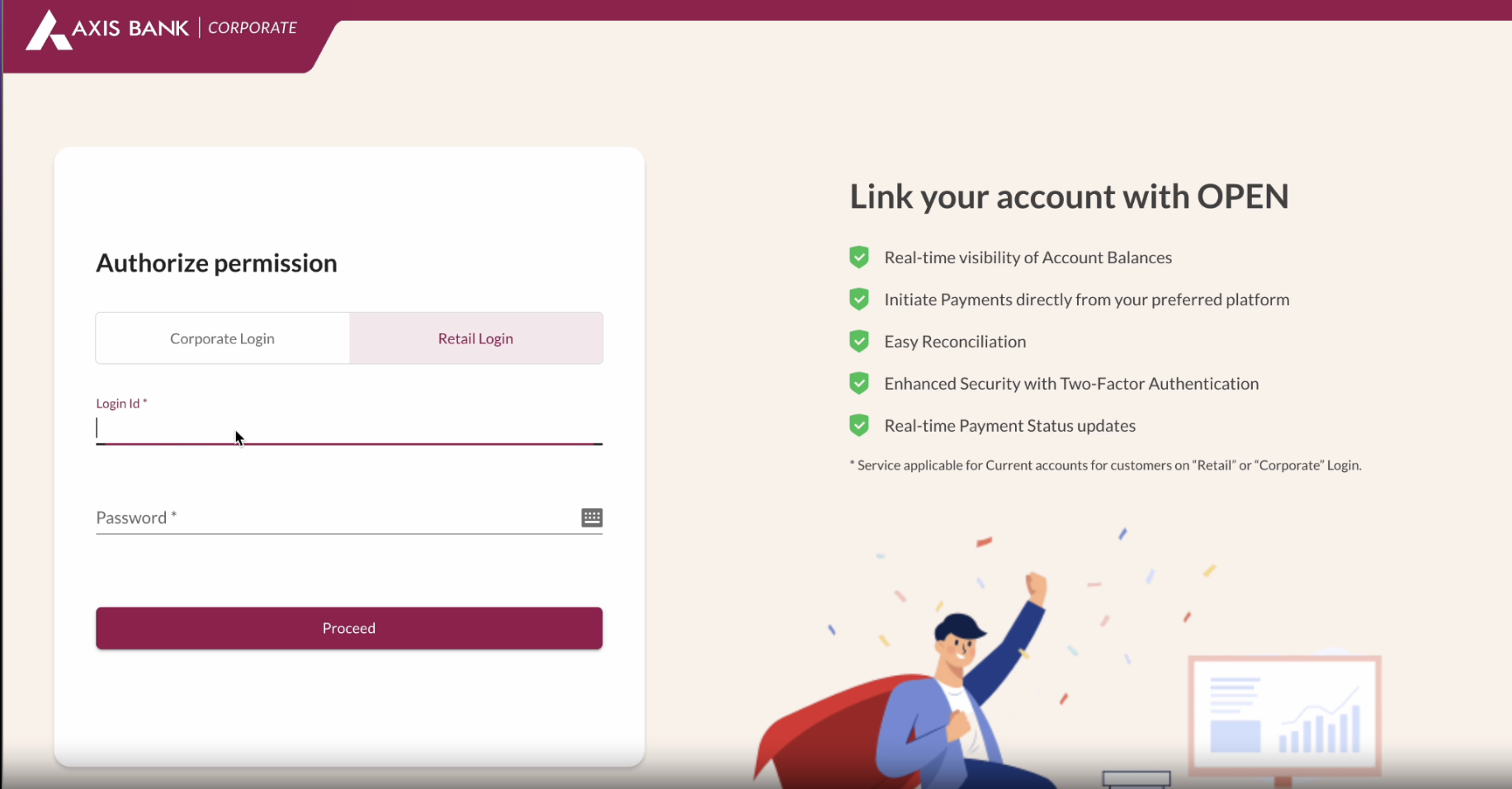
Step 6 — Enter your credentials
Select your login type — Corporate Login or Retail Login — enter your Login Id and Password, then click Proceed.
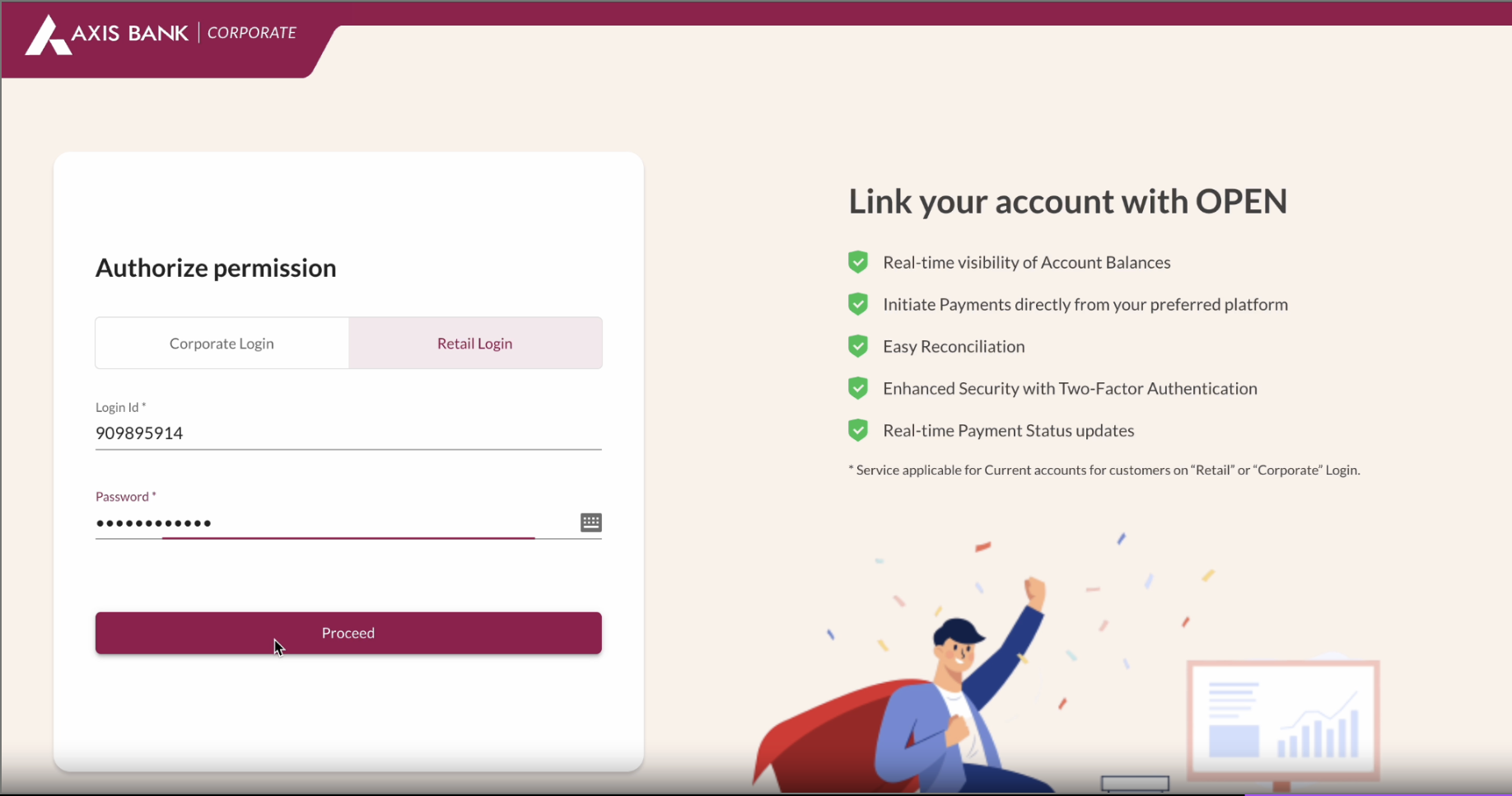
Use the on-screen keyboard if requiredAxis Bank offers a virtual keyboard next to the password field. Use it if your organization's policy requires it.
Step 7 — Verify the OTP
Enter the one-time password sent to the mobile number registered with Axis Bank and click Submit. If it does not arrive before the timer expires, use RESEND OTP.
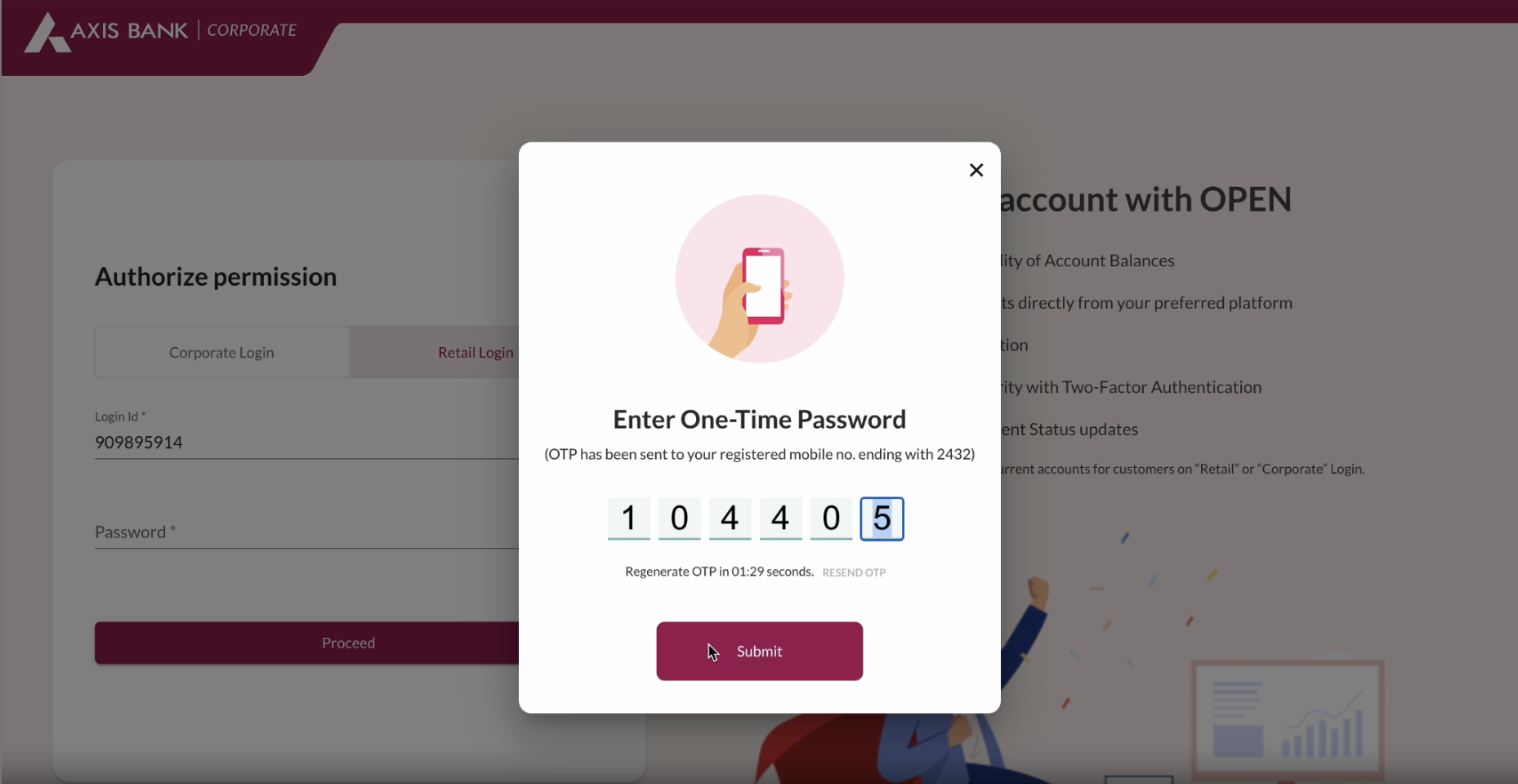
Step 8 — Accept the Terms & Conditions
Read the Axis Bank ERP-service terms, select I have read the Term & Conditions, and click Proceed. Choosing Disagree cancels the linking.
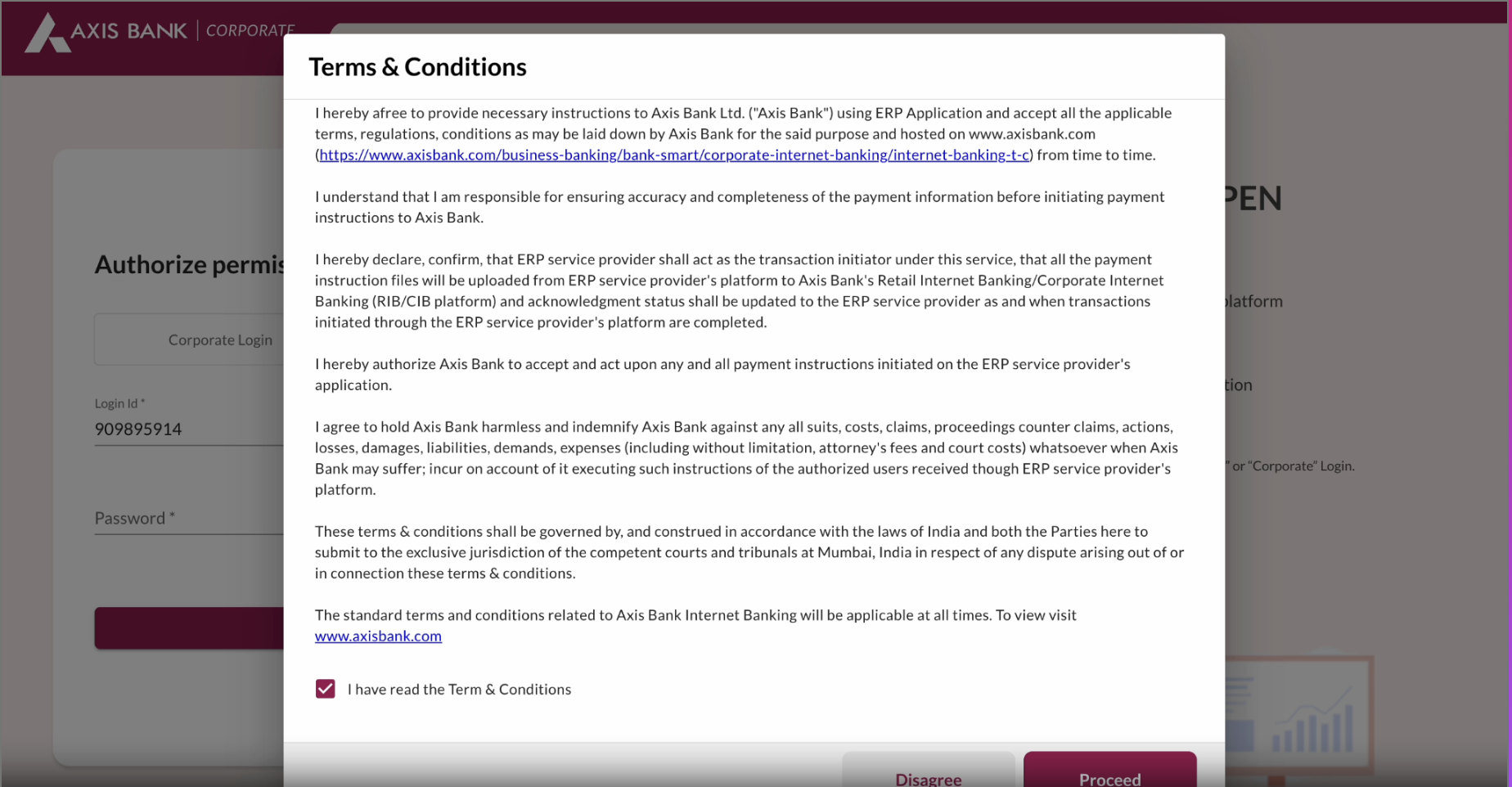
Step 9 — Close the Axis Bank tab
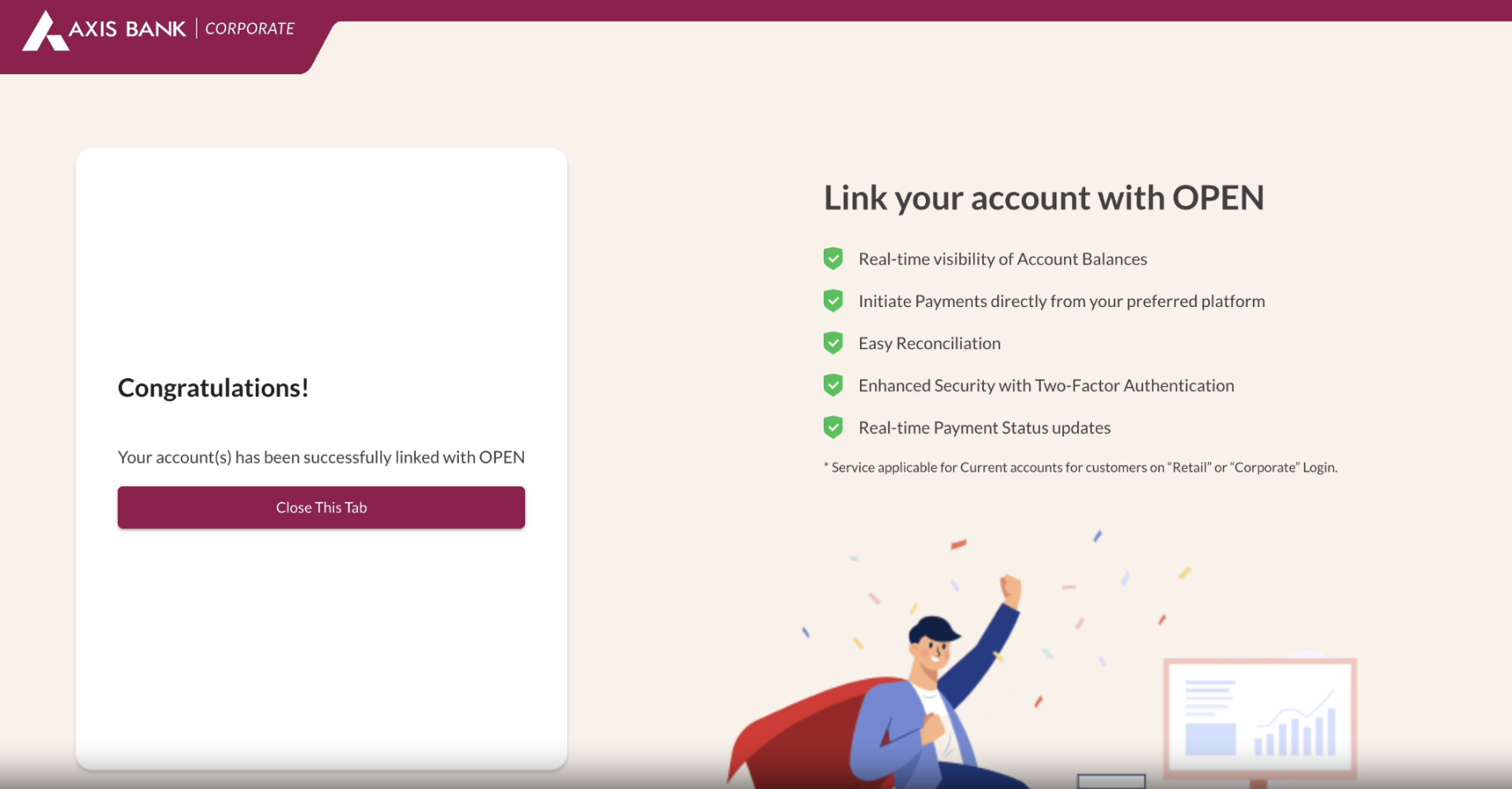
On success, Axis Bank shows a Congratulations! confirmation. Click Close This Tab to return to Open.
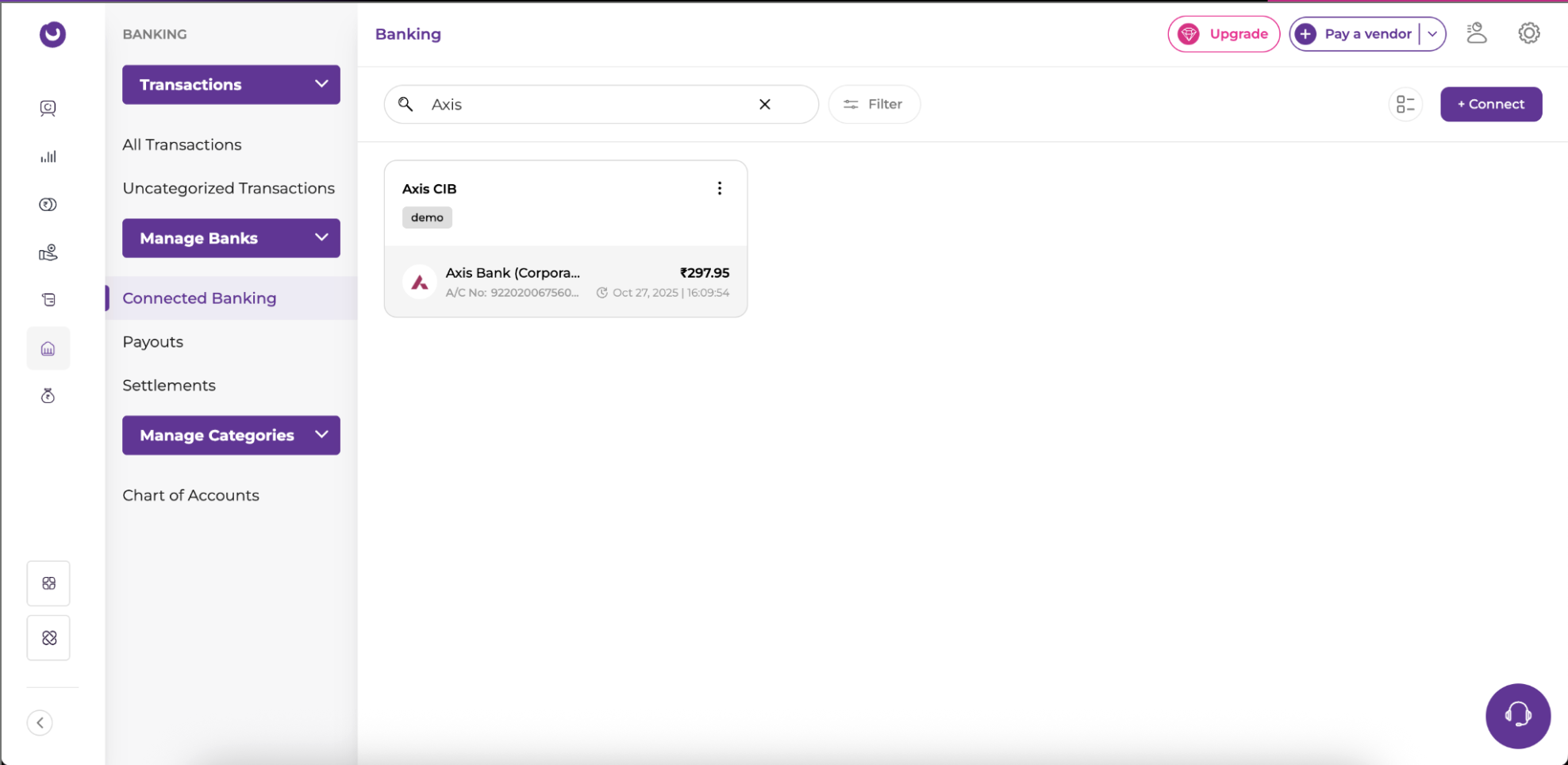
You land back on the Connected Banking page, where the newly linked account appears as a card showing the account nickname, masked account number, current balance, and last sync timestamp.
Troubleshooting
| Issue | What to check |
|---|---|
| Axis Bank tile is missing | Confirm Connected Banking is enabled on your Open plan. |
| Login fails on the Axis page | Credentials are validated by Axis Bank, not Open. Reset them through Axis internet banking and retry. |
| OTP not received | Verify the mobile number registered with Axis Bank, then use RESEND OTP. |
| Account does not appear after linking | Refresh the Connected Banking page. If it is still missing, the authorization may not have completed — rerun the flow from Step 3. |
| Balance shows as stale | Check the last sync timestamp on the account card and trigger a manual refresh. |
Updated 2 months ago